Why Your Links Look Broken When Shared (Open Graph Tags, Explained)
A shared link shows the wrong title, no image, or a cropped image because of a few lines of code called Open Graph tags. Here is what each tag does, why previews break, and how to fix them.
Soidesmax Editorial · 15 min read · Updated 2026-11-29
You finish a page, share the link, and the card that appears is not the page you built. The headline is an old one. The image is your logo, cropped to a square. Or there is no image at all, just a gray box and a bare URL. The page itself is fine, so the problem feels random, but it is not. The card is built from a few lines of code in your page called Open Graph tags, and when those tags are wrong, every platform shows the same wrong card.
This post explains what each tag does and how it breaks: why the wrong title shows up, why the description quotes your cookie banner, why the image goes missing, and why fixing the tags sometimes changes nothing until you clear the cache. The fixes are small. Most of them take one line of code.
The card is a tag readout, not your page
When you paste a link into a post, the platform does not open your page the way a browser does. A crawler fetches the raw HTML, reads the meta tags in the head section, and builds a card from what it finds: one image, one title, one description, and the domain name. It never runs your page the way a visitor sees it, and often never runs JavaScript at all.
That is the first thing to understand about a broken preview. The card does not show your design, it shows what the tags say. If the tags are right, the card looks planned. If they are missing, the platform guesses from whatever it can find first: the browser tab title, the first image on the page, the first paragraph of text. A favicon becomes the cover image. A navigation label becomes the headline. A cookie banner becomes the description.
Every platform reads the same tags, but each one lays the card out differently, so one set of tags can look right on Facebook and wrong on X. The rest of this post goes tag by tag, so you can find the one behind the exact problem you are seeing.
og:title: why the wrong headline shows up
og:title is the headline on the card. When it is set correctly, the card shows the headline you wrote for that page. When it is missing, the platform falls back to the HTML title tag, which is the text in the browser tab. That is where most wrong headlines come from.
The title tag often carries extra text the card does not need. A template may set every page title to "Page name | Site name", so the card shows both, or to a generic label like "Home" or "Blog". Some sites set the same title on every page, so every shared link shows the same headline. The fix is to set og:title on each page to that page's headline, and nothing else.
Length matters too. Most platforms cut titles at around 70 characters. A long headline does not wrap, it stops mid-word, so put the important words first and keep it under 70. If your page title needs the site name for search results, keep it in the title tag and leave it out of og:title. The two tags can say different things, and the card only reads og:title.
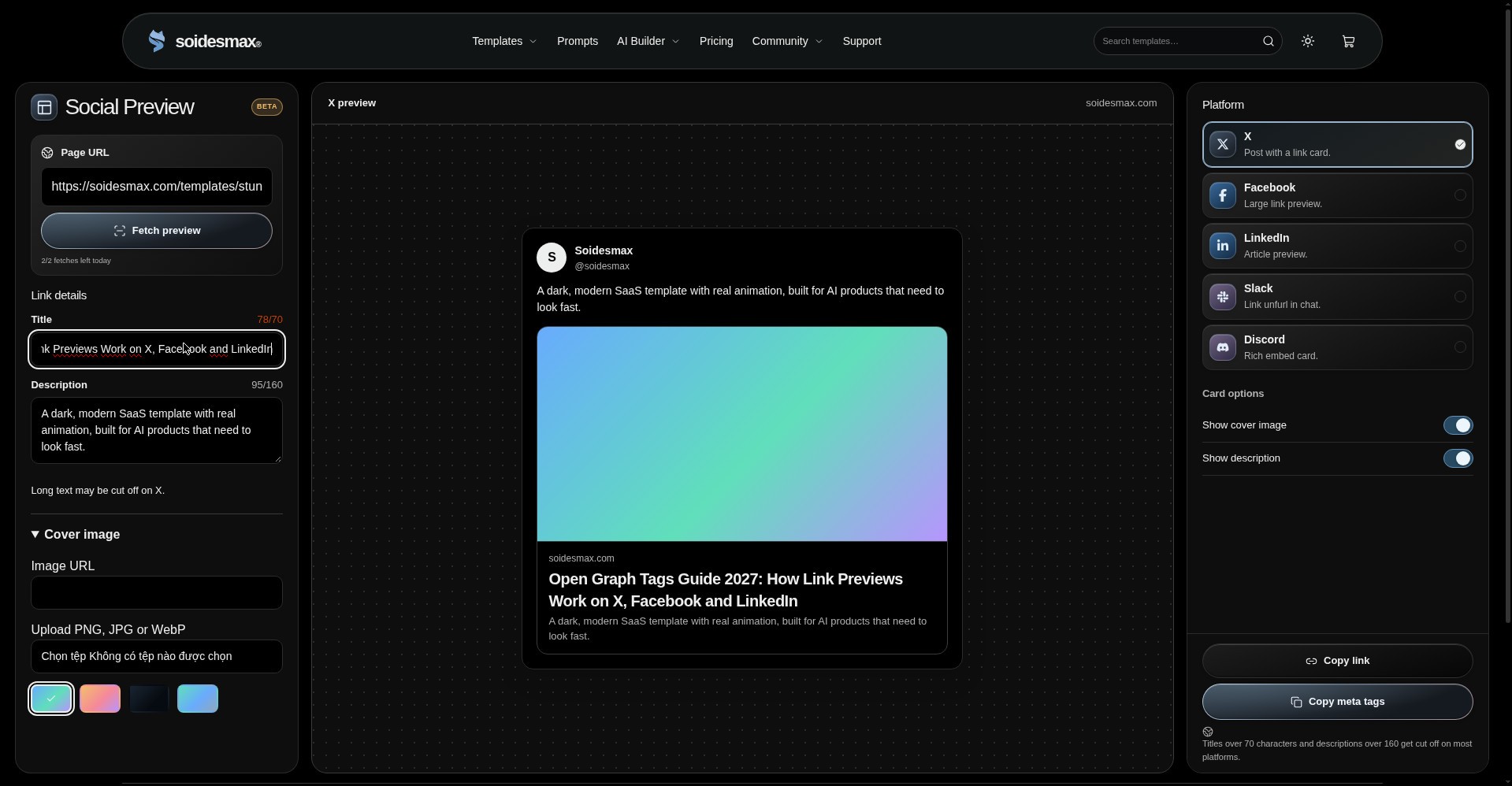
One more cause is easy to miss: the cache. If a link was shared once with the wrong title, the platform stored that card, and fixing the tag does not rewrite the stored copy, so the old headline keeps showing until the cache is cleared. There is a section on that near the end of this post.
og:description: why the card quotes your cookie banner
og:description is the one or two lines of text under the headline. When it is missing, the platform falls back to the page meta description, and if that is missing too, it takes the first text it finds in the body. That is how a cookie banner, a navigation menu, or a newsletter prompt ends up as the description on your card.
The fix is the same as for the title: write og:description for each page, under 160 characters, because most platforms cut longer text mid-sentence. Write one sentence that stands on its own, because the card shows it without the rest of the page. "A dark, modern SaaS template with real animation, built for AI products that need to look fast" works. "Click here to read more about our features and pricing and everything else we do" does not, because it says nothing about the page itself.
Note that og:description and the meta description are two different tags with two different jobs: the meta description is written for search results, og:description for the share card. They can hold the same text, but if you only set one, the other surface has to guess. Set both, and keep them short.
og:image not showing: the six most common causes
A missing image is the most visible preview failure, and it almost always comes from one of six causes.
First, the tag is missing. A page with no og:image gets a text-only card, or no card at all. Add the tag with an absolute image URL.
Second, the URL is relative. A value like /og/cover.jpg means nothing to a crawler, because it has no page address to resolve it against. The URL must be absolute, start with https://, and load for a visitor who is not logged in.
Third, the image is too small or the wrong shape. The safe size is 1200 by 630 pixels, a ratio of 1.91 to 1, which fills the large card on every major platform. A small square logo gets stretched or cropped, and a tall portrait loses its top and bottom.
Fourth, the file itself is wrong. X documents its large card as a 2 to 1 ratio, at least 300 by 157 pixels, and under 5 MB. An SVG will not work as a preview image. Use JPG or PNG.
Fifth, the image is behind a login, a firewall, or a bot challenge. The crawler is not logged in, so it cannot fetch what a logged-in visitor can see. Open the image URL in a private window while logged out. If it does not load there, the crawler cannot load it either.
Sixth, the crawler is blocked. A robots rule, a firewall, or tags that only render with client-side JavaScript can leave the crawler with nothing to read. Render the Open Graph tags in the server HTML, and let the platform crawlers through.
Work through the six in order. Most missing images are fixed by the first three.
og:image:width, og:image:height, and og:image:alt
Three small tags sit next to og:image, and they solve the cropping problem that the image size alone does not.
og:image:width and og:image:height tell the crawler the dimensions before it downloads the file, so the platform can reserve the right space and lay the card out without guessing. Without them, the crawler has to fetch the image first, and some platforms skip the image entirely rather than wait. Add both tags with the real pixel dimensions, and update them when the file changes.
og:image:alt is the text alternative for the image. Screen readers use it, and some platforms show it when the image fails to load. Write one short plain sentence about what the image shows, not a keyword list and not the page title again.
None of these three tags changes what the image looks like. They change how reliably the image appears, and how the card behaves when the image cannot load. They cost three lines, and they remove a whole class of "sometimes the image shows, sometimes it does not" problems.
og:url, og:type, and og:site_name
These three tags do quiet work in the background. They rarely cause a visibly broken card on their own, but they cause the strange cases: two different cards for the same page, or a page shared as the wrong kind of thing.
og:url is the canonical address of the page. A page can be reached through more than one address: with and without www, with a trailing slash or without one, with tracking parameters added by an ad or a newsletter link. Without og:url, the platform may treat each version as a different page, with its own cached card. With og:url set to one clean address, every share points at the same card, and one fix applies to all of them at once.
og:type says what the page is. Most pages use website. Articles use article, which lets you add extra detail such as the publish date and the author. The type changes how the card is labeled, so a blog post shared as website can lose the article treatment, and a product page shared as article can look like a news story.
og:site_name is the name of the site as a whole, shown small on the card next to the domain, and it keeps the brand visible when the title does not carry it. Set it once per site, not once per page.
How each platform reads the same tags
The tags are shared, but the cards are not. Each platform crops the same image differently, cuts text at a different length, and drops parts the others keep.
X uses the large image card when twitter:card is set to summary_large_image: at least 300 by 157 pixels and under 5 MB, at a 2 to 1 ratio. Since late 2023, X lays the headline over the bottom of the image and drops the description entirely, so the image has to work with text sitting on it. Keep the bottom clear of small detail.
Facebook shows a large preview with the image on top and the title and description underneath. The recommended image is 1200 by 630 pixels, with a minimum of 600 by 315, and Facebook keeps the description, so a good og:description still matters there.
LinkedIn shows an article-style card and asks for an image of at least 1200 by 627 pixels, which the same 1200 by 630 file covers. It keeps the title and description, and shows the site name clearly.
Slack unfurls a link inside the chat with a small thumbnail on the side and the title, description, and domain next to it, so a cover with fine detail turns to noise at that size. Discord shows a compact rich embed with the title, description, and image stacked, and reads the same tags.
The practical rule is to design one image at 1200 by 630 that survives every crop: main subject in the center, no small text, nothing important near the edges or the bottom. Then check the card on each platform before you post, because the same file is rendered five different ways.
The cache problem: you fixed the tags and nothing changed
The most confusing preview failure is the one where everything is fixed and the card still looks broken. The tags are right, the image loads, the size is correct, and the shared link still shows the old card. That is the cache.
Platforms store the card the first time they see a link. The next share shows the stored copy instead of fetching the page again, so a fix to the tags does not change the card already stored. Each platform has its own way to force a fresh fetch.
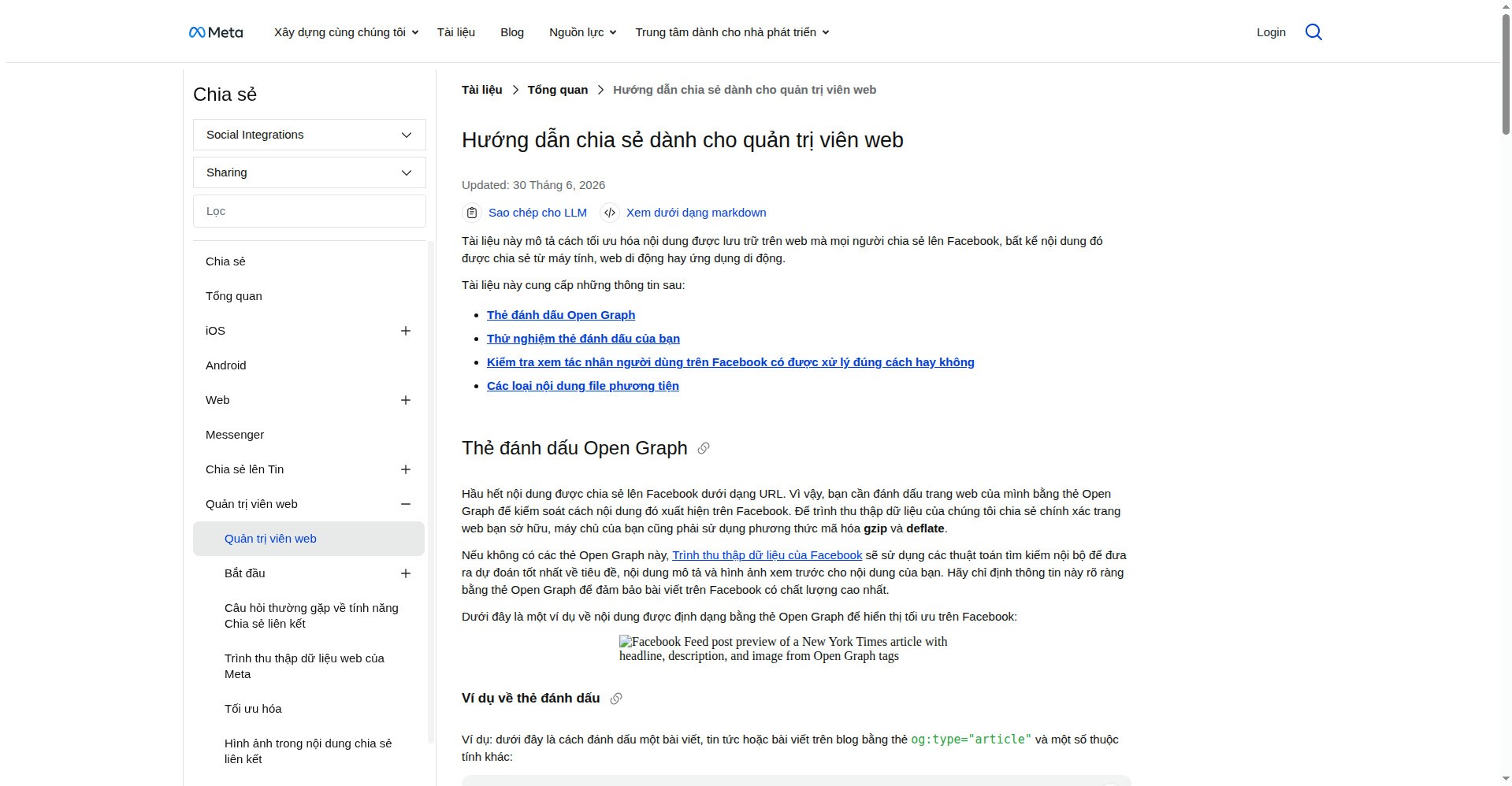
For Facebook, open the Sharing Debugger at developers.facebook.com/tools/debug, paste the URL, and click Scrape Again. That forces a fresh fetch and replaces the stored card. It needs a Facebook login, and it covers Facebook, Instagram, and WhatsApp, which share the same crawler.
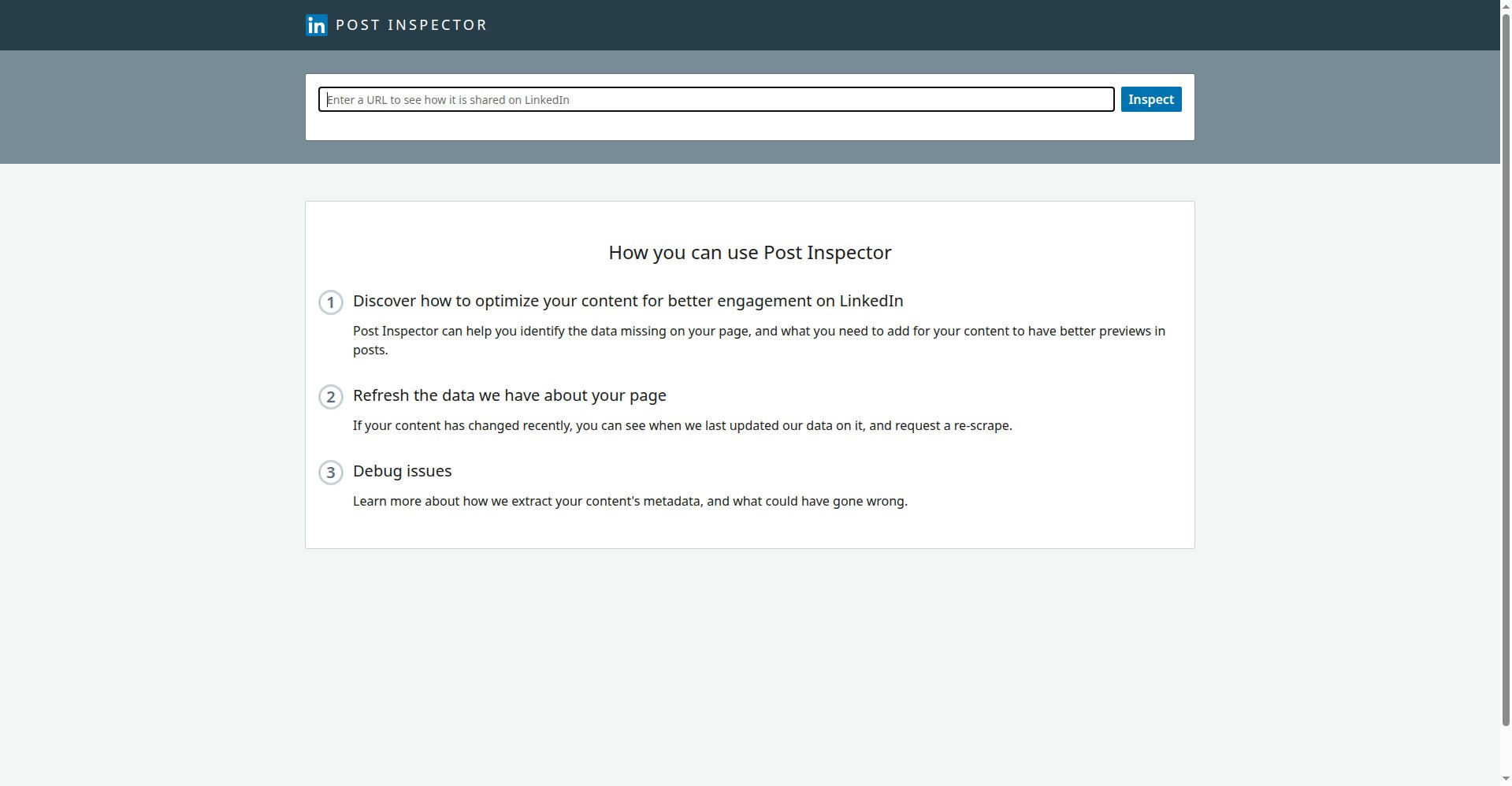
For LinkedIn, run the URL through Post Inspector at linkedin.com/post-inspector and click Inspect. That refreshes the stored copy. It only fixes new posts, because published posts keep the preview they were created with, and you need to sign in to inspect.
X has no refresh button. Its crawler re-reads a page roughly every seven days, so a fixed tag can keep showing the old card for about a week. The workaround is to share the URL with a query string added, like ?v=2, which X treats as a new address and fetches fresh. That changes the shared address, so use it only when the old card is visibly wrong.
Preview tools have caches of their own too. If a checker still shows the old card right after a fix, run the platform debugger first, then check again.
Check the card with the free tools
You do not have to publish and hope. Five free tools show the card before anyone else sees it.
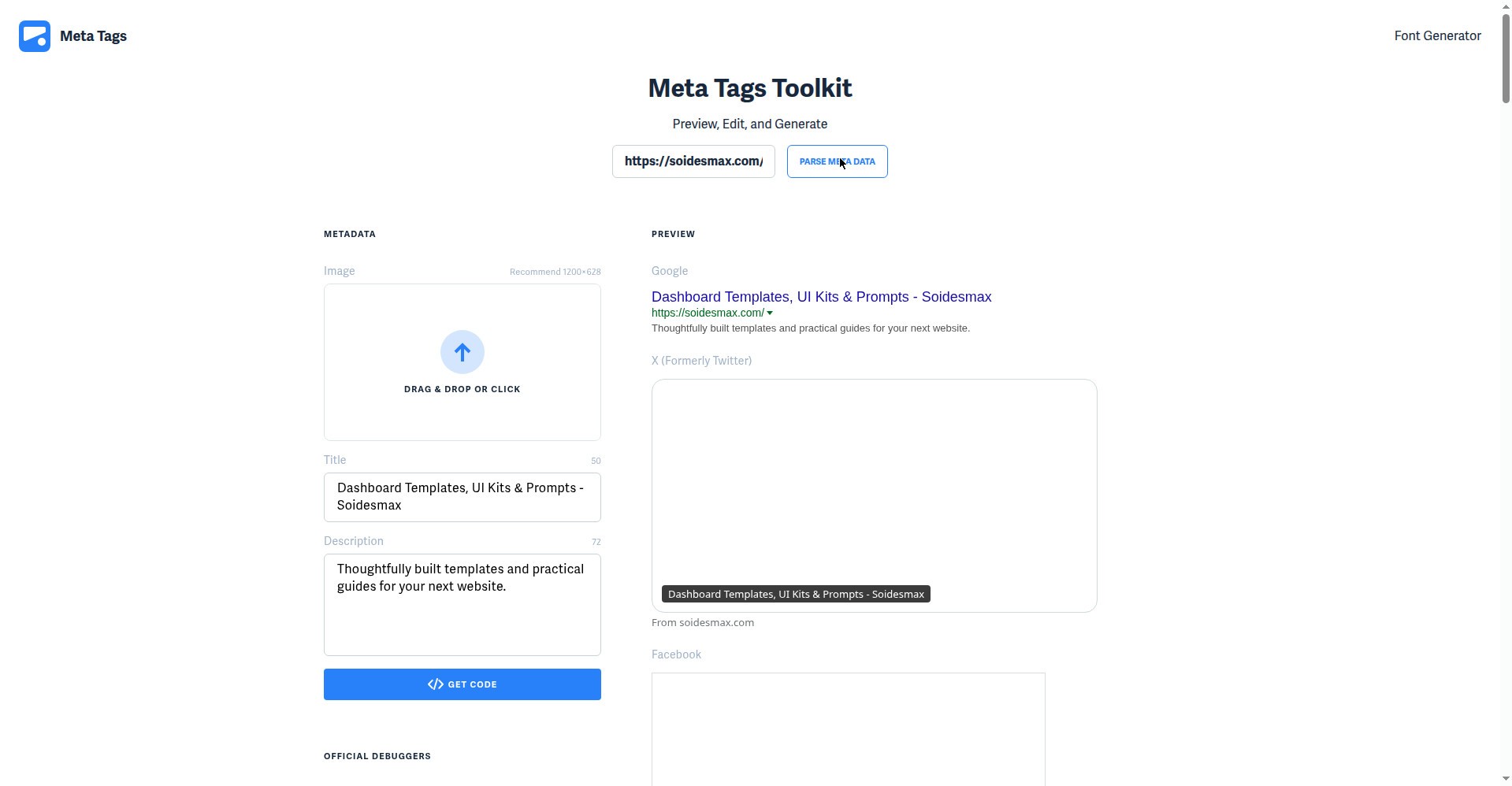
metatags.io is a preview and tag generator that needs no account. You type in a URL, a title, a description, and an image, and it shows the card side by side on Google, Facebook, X, LinkedIn, Pinterest, and Slack. Edit the text in the tool, watch every preview update, then copy the finished meta tags.
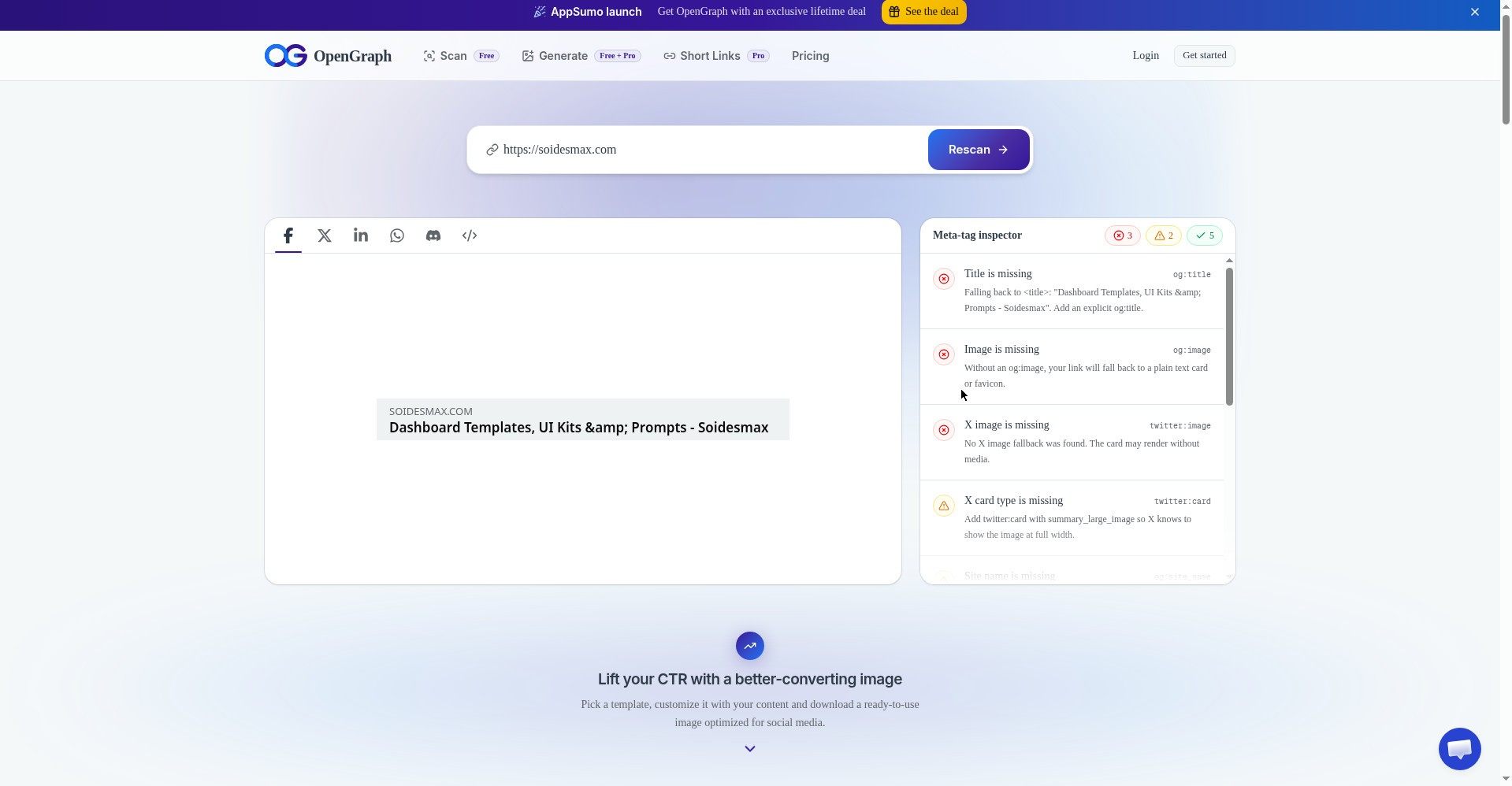
OpenGraph.xyz works the other way around. Paste a live URL and it fetches the page the way a social crawler does, then shows the card that page will produce across Facebook, X, LinkedIn, and Discord. It flags tags that are missing or wrong, so a broken preview turns into a short list of fixes.
The Facebook Sharing Debugger shows the exact tags Facebook scraped, warnings about what is missing, and the preview it will use, with a Scrape Again button to clear a stale card. The LinkedIn Post Inspector shows the preview LinkedIn will use, the properties it found, the redirect trail, and when it last fetched the page. Both need a sign-in.
X no longer has a preview tool. It removed the preview from its Card Validator in August 2022 and shipped no replacement, so the check that remains is the post composer: paste the link into a new post without sending it, and the card appears as your readers will see it.
Draft the tags with Soidesmax Social Preview
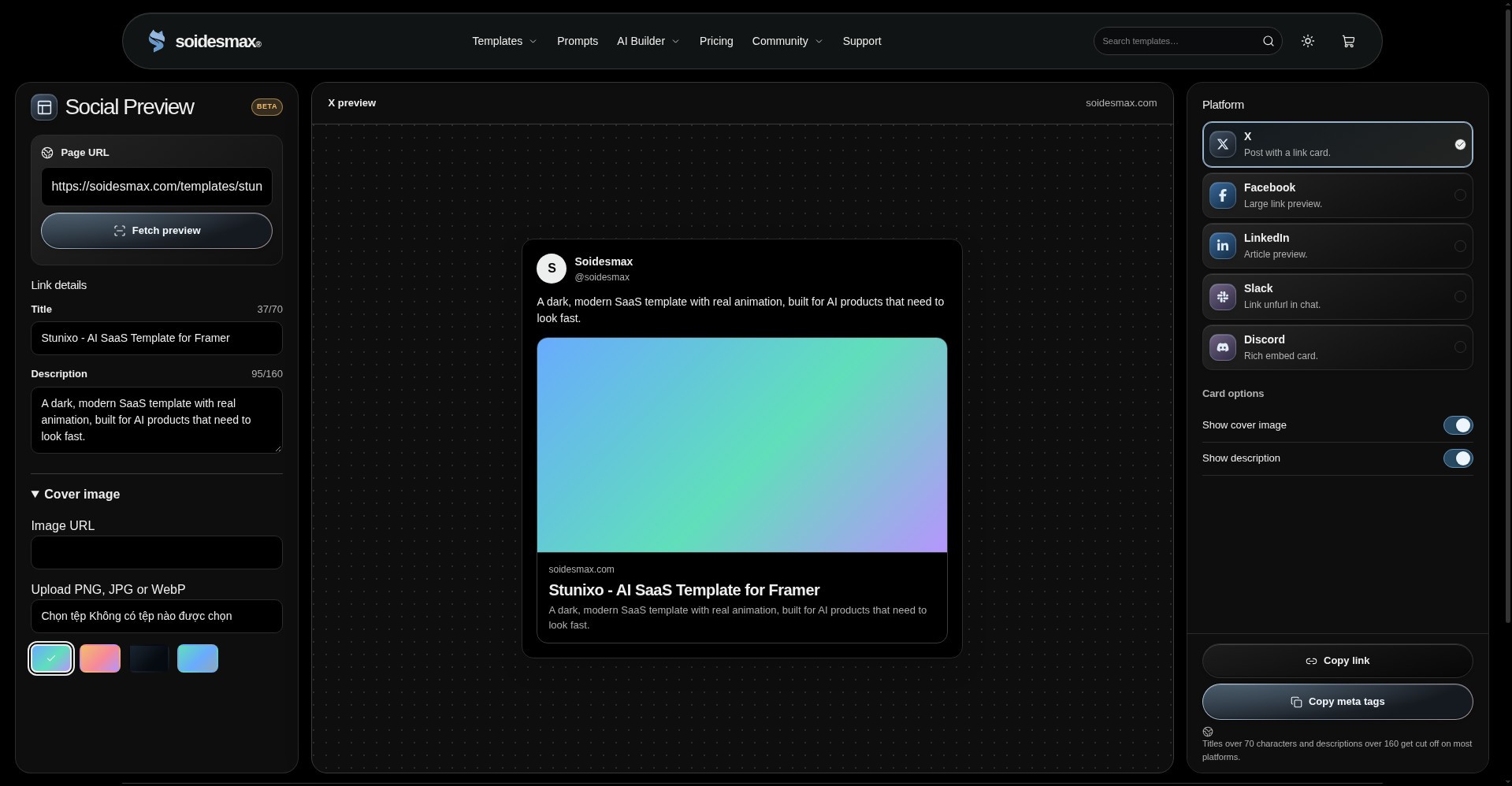
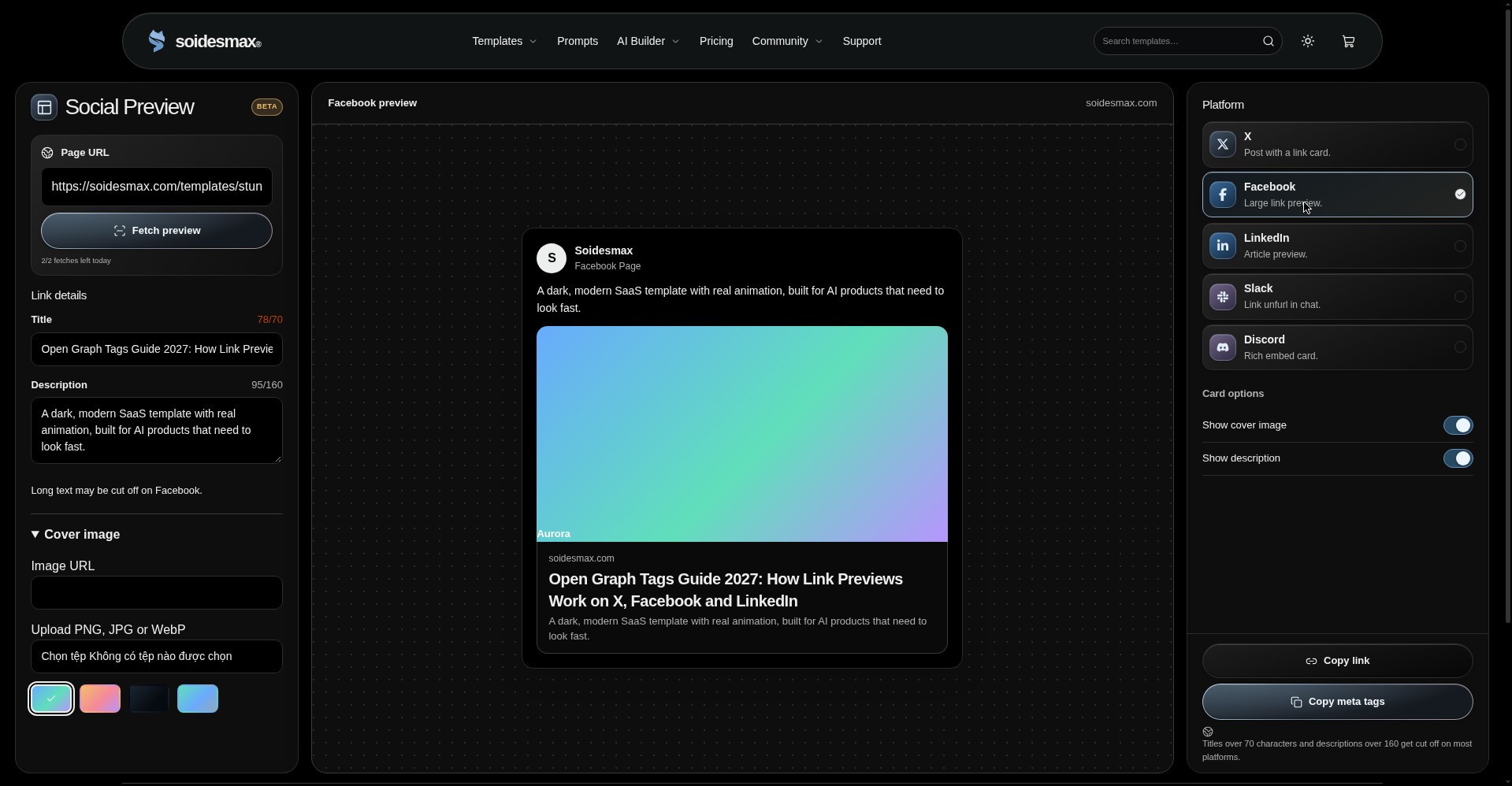
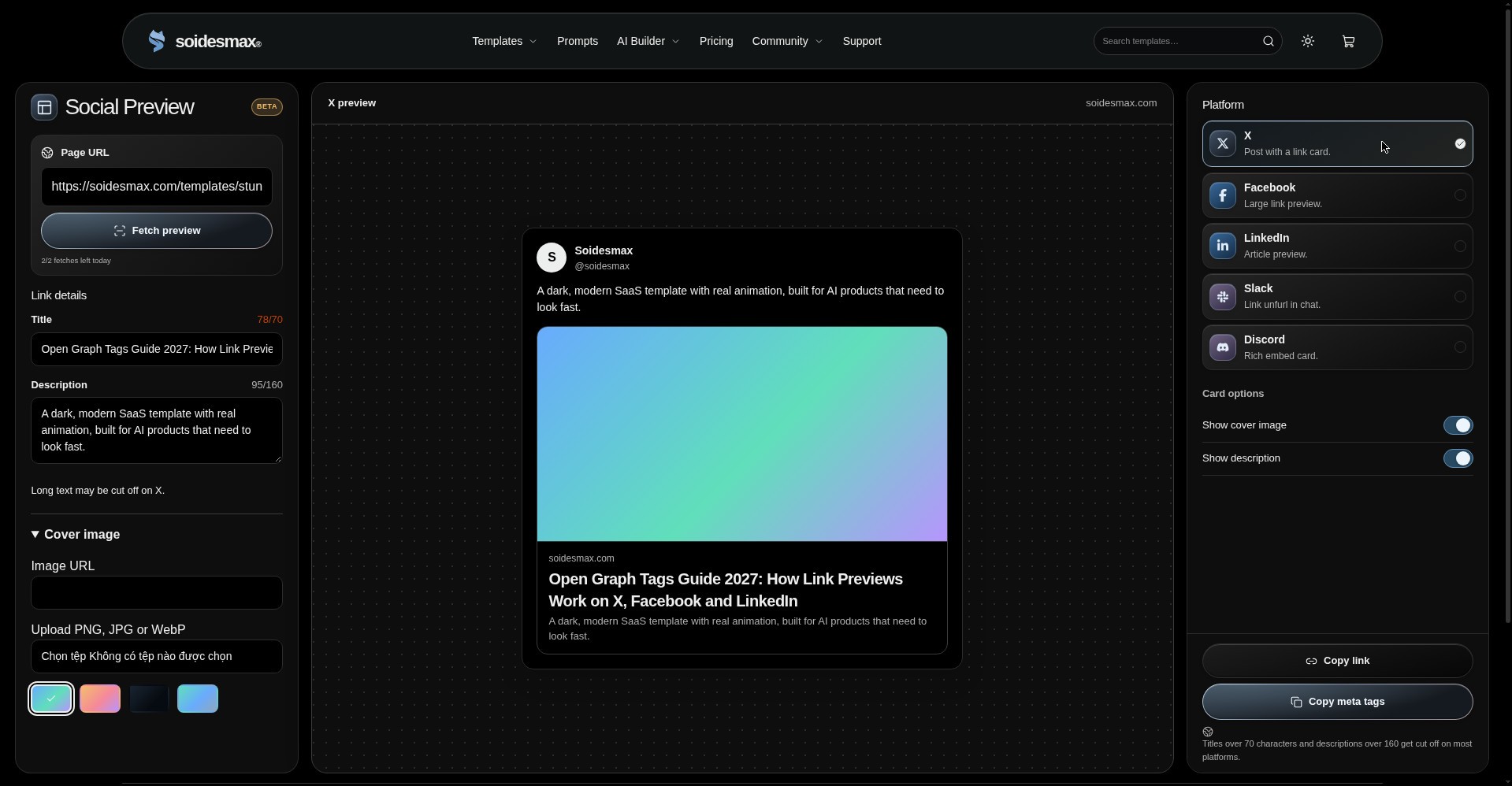
The tools above check a page that already exists. Soidesmax Social Preview is built for the step before that: drafting the card. Type the URL, the title, and the description once, pick a cover, and see how the card looks on X, Facebook, LinkedIn, Slack, and Discord, one platform at a time.
The tool counts characters as you type, with the title capped at 70 and the description at 160, and warns you when the text is about to be cut. Switch the cover between four gradients (Aurora, Ember, Ink, and Mint), toggle the cover image and the description on or off, and compare the same draft as an X post, a Facebook preview, a LinkedIn article card, a Slack unfurl, or a Discord embed. When the draft is right, one button copies the finished meta tags (og:title, og:description, og:url, og:type, and the X card tags) ready to paste into your page, and another copies the link itself.
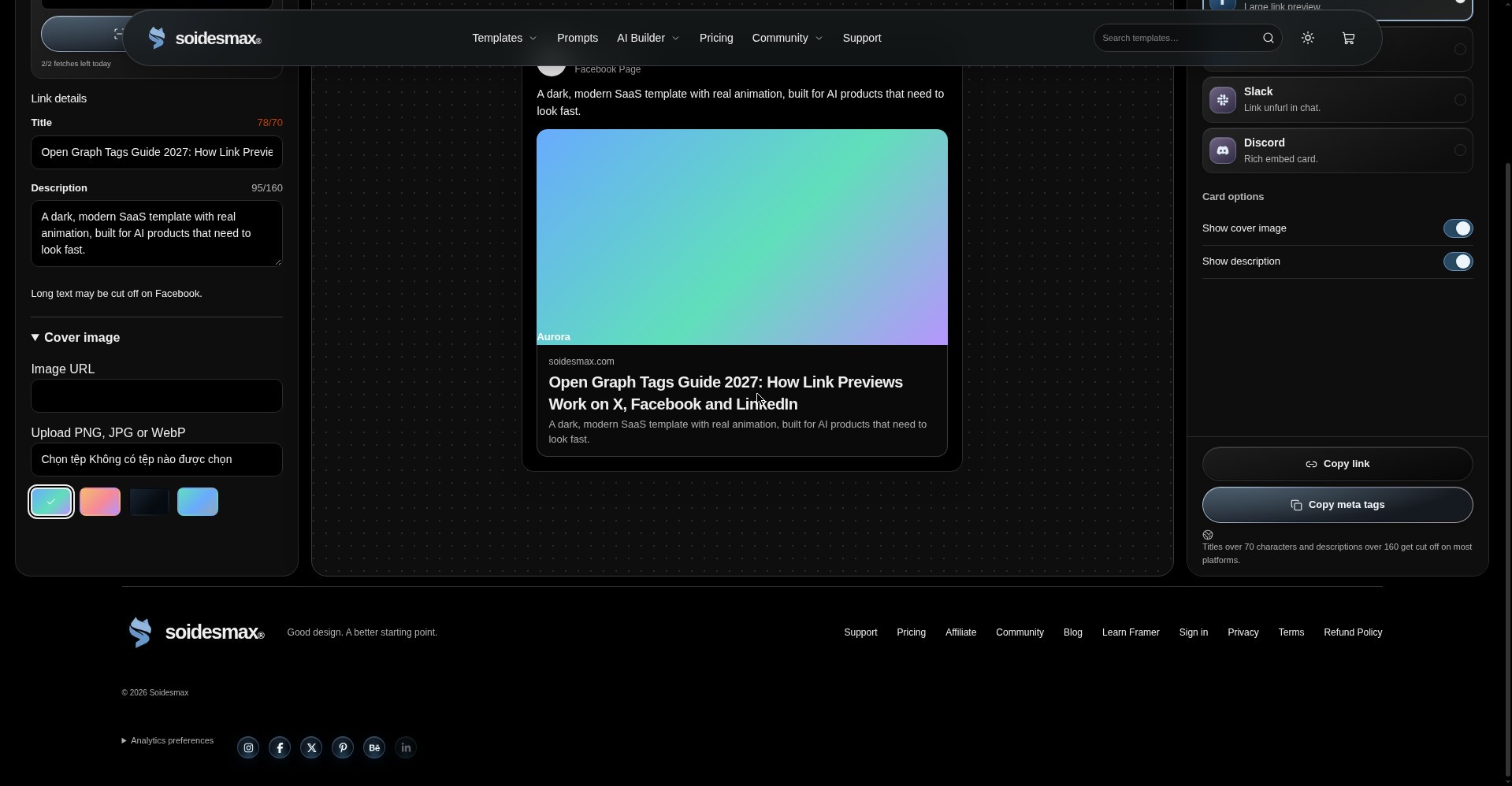
The tool is in Beta, and live link fetching is next. For now the preview uses the text you type, which is the point: draft the card first, get the tags right, and only then publish the page and check it with the platform debuggers.
If the page behind the link is a product page, it deserves the same care as the card. Browse the templates when you are ready to start from a page that is already built to be shared.